Which Permissions Should I Provide for Support to Help Embed or Reposition the Switcher?
If you need assistance with embedding the switcher, adjusting its position, or troubleshooting theme-related issues, our support team may need temporary access to your Shopify store.
You can grant access using either of the following methods.
Invite Transtore as a User
If you would like to grant access by inviting our team as a user, please follow the steps below:
- Log in to your Shopify Admin.
- Go to Settings → Users.
- Click Add users.
- Enter [email protected] as the email address.
- In the Roles section, click Assign.
- Select a role that includes the following permissions:
- Online Store (Themes, including Edit code)
- Apps and sales channels
- Click Save to send the invitation.
Once the invitation has been sent, please let us know so we can review and accept the request.
For detailed instructions, please refer to Shopify's guide:
https://help.shopify.com/en/manual/your-account/users/invite-users
Send Us a Collaborator Code
In case you are using a Shopify basic plan, and have limited number of staff account, we are ok with a Collaborator account. Please share your Shopify domain & the code with us that will be required to send a Collaborator request from our side.
After receiving the code, we will send a collaborator access request for your approval.
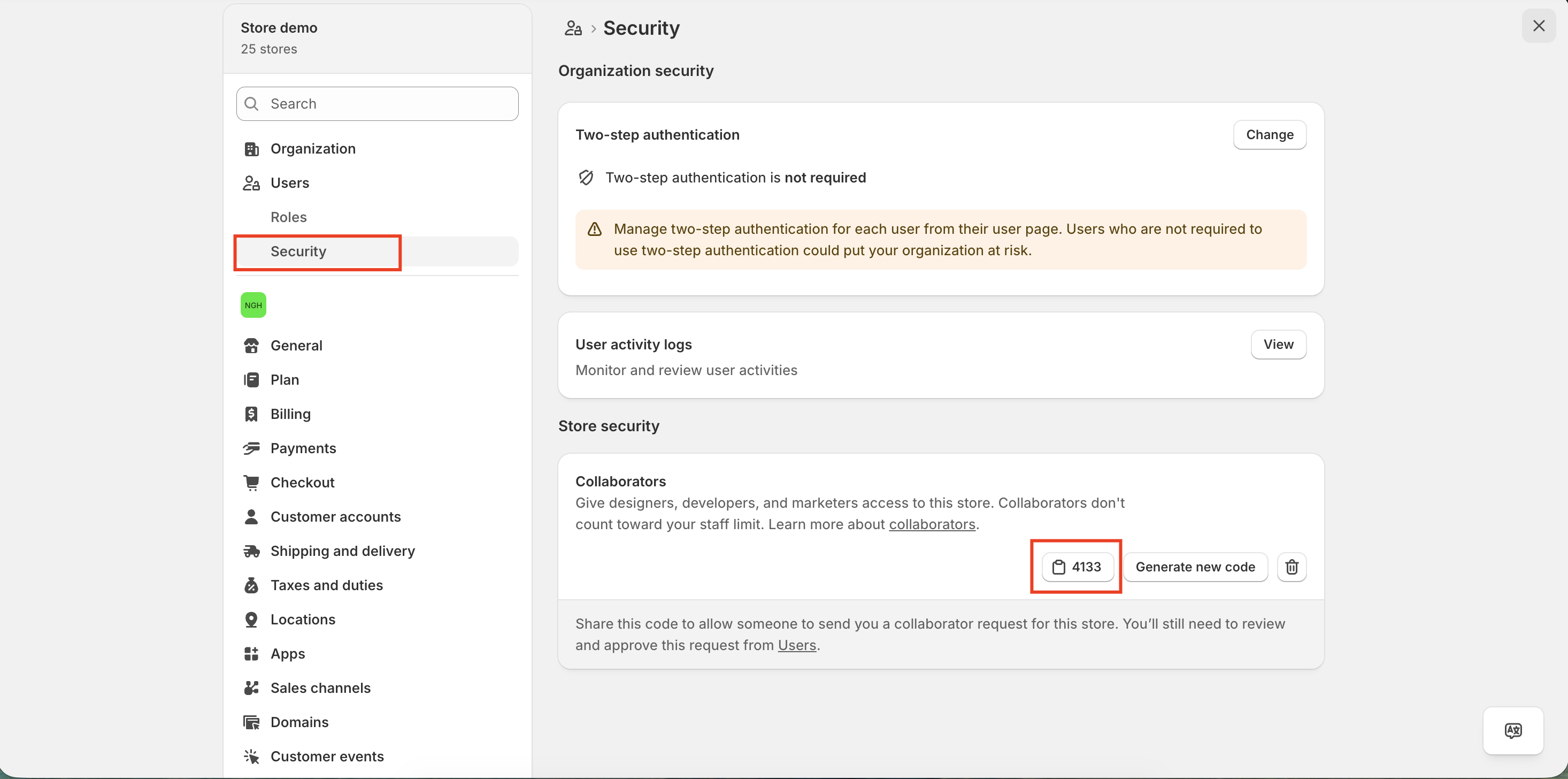
You can find your Collaborator Code by following Shopify's guide:
What Will This Access Be Used For?
The requested access helps our team:
- Embed the switcher into your theme
- Move the switcher to your preferred location
- Review theme compatibility
- Troubleshoot display or integration issues
- Apply theme-related fixes when required
Need Help?
If you have any questions, please contact us at [email protected].